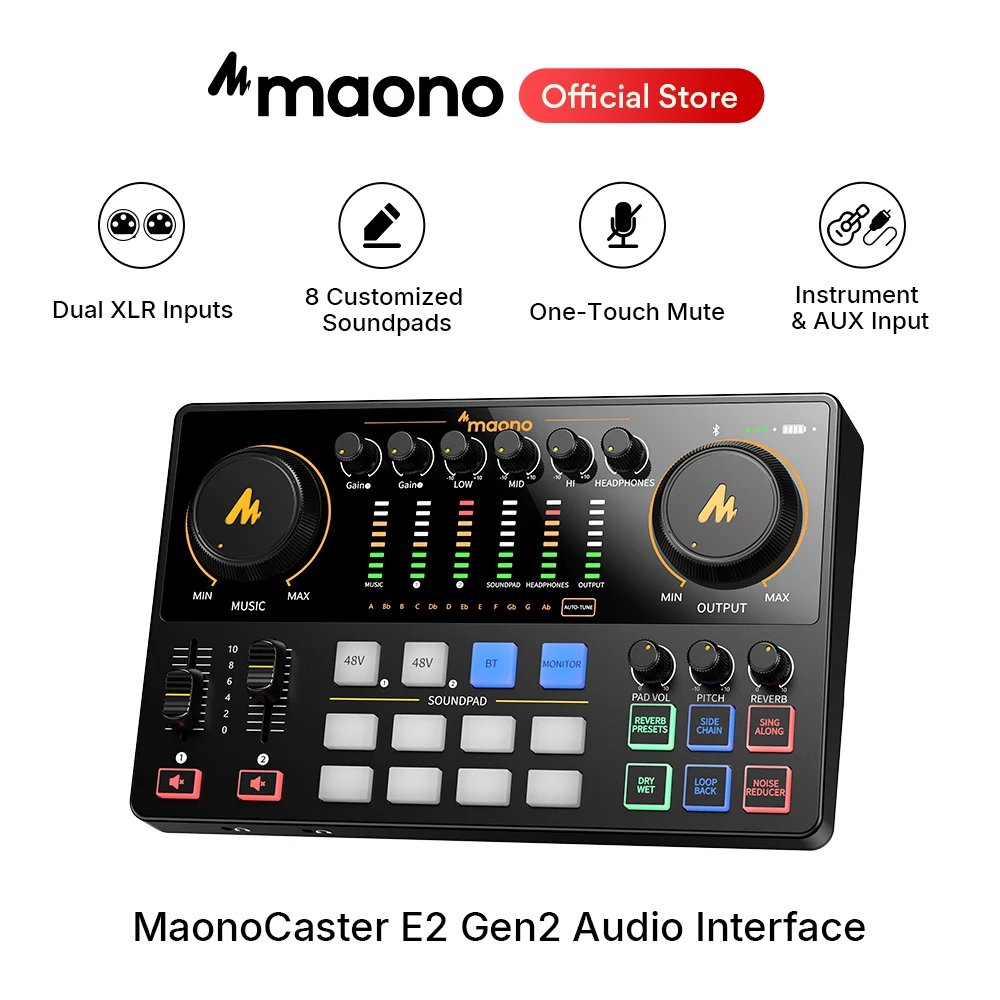




MaonoCaster E2 Gen2 audio interface with two XLR inputs for live streaming, gaming, and podcast broadcasting, versatile sound card
859.05ر.س
Product description
MaonoCaster E2 Gen2 audio interface with dual XLR input for dual live streaming and gaming sound interfaces and sound card
Product description: Maonocaster E2 Gen2 is an upgraded version of the famous audio control unit for streaming and podcasting, E2. It now features two XLR microphone inputs with dedicated controls for recording two people's voices, a direct monitoring switch, and two mute buttons to improve user experience and simplify workflow. The E2 Gen2 supports Bluetooth technology, AUX input, and musical instruments for playing background music. It also includes eight programmable sound buttons to enhance content creativity. Whether you are an experienced content creator, live streamer, musician, or a creative exploring the world of sound, the Maonocaster E2 Gen2 is your perfect companion.
Product features:
Dual XLR microphone input for two guests
Device input and AUX input to enrich your content
+60 decibel powerful microphone amplifier
Independent control of microphone and accompaniment volume
Side chain feature to highlight sound
Advanced noise-canceling algorithm to reduce ambient noise
Two outputs and one USB output streaming to multiple devices
USB-C for easy connection to computer and charging
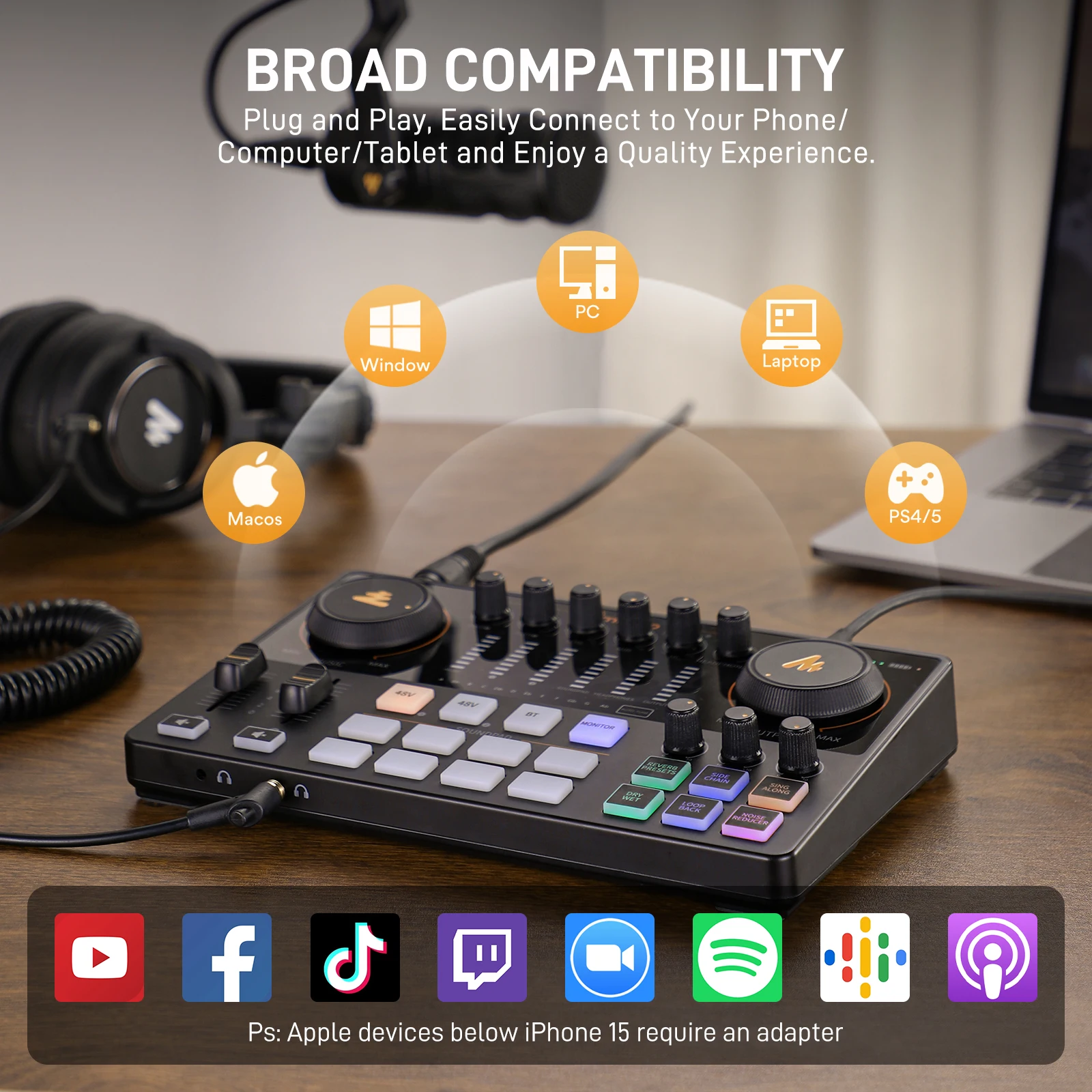
Compatible with Windows and macOS
Built-in battery, up to 8 hours of offline operation
Phantom power +48V support for condenser XLR microphones
12 automatic tone control levels for more accurate sound
*Note:
Two models are available for this offer:
1. XLR port AME2_1
2. E2 Gen2_2 XLR ports
Please carefully confirm which model you need before placing your order and choose accordingly to avoid any mistakes.
Thank you for your understanding and cooperation!
🎙️ Developed comprehensive podcast package
E2 Gen2 is a comprehensive and advanced solution for audio broadcasting, featuring dual XLR inputs, high-quality 60 decibel amplifiers, and USB-C and 3.5mm ports for seamless setup with phones and computers.
🎧 Clear and pure sound with XLR interface
Equipped with low-noise amplifiers providing up to 60 decibels of gain, the E2 Gen2 ensures rich and clear sound, even with dynamic microphones. Ideal for beginners and professionals alike.
🎤 Mute with one touch and sound monitoring
One-touch mute button helps you handle unexpected moments smoothly. Monitoring feature allows you to hear your voice while gaming or streaming for better control.
🎸 Support for instruments and phantom power
Supports instrument input and AUX input for more diverse content. +48V phantom power allows the use of condenser microphones for professional-quality recording.
🎛️ 8 customizable sound pads
Add a personal touch to your show with 8 programmable sound pads. Each supports recording up to 20 seconds with adjustable volume—perfect for intros, sound clips, and fun effects.
📱 Wireless Bluetooth 4.2 connection
Built-in Bluetooth 4.2 technology allows you to wirelessly stream background music from your phone or tablet directly into your mix. Perfect for adding music, sound effects, or remote guest voices without extra cables.
🎶 Sound effects and reverb
Transform your voice with pitch-shifting effects and 6 preset reverb modes. SingAlong mode lets you hear your voice while singing without broadcasting it—ideal for performers.
🔋 Long-lasting portable battery
Built-in 2000mAh battery provides up to 8 hours of use on a single charge. Compact and portable design makes it perfect for creators on the go.
✅ Recording, audio streaming, live streaming, and gaming on computers, tablets, and smartphones. Compatible with major recording and streaming software.
Package contents:
1× E2 Gen2 console
1× USB-A/USB-C to USB-C cable
1× TRRS 3.5mm cable
1× User manual / Setup guide
1. Connect to computer
1. Connect microphones, headphones, and any other required devices as shown in the diagram above.
2. Use the included USB-C data cable to connect the Maonocaster device to your computer. Once connected, the computer will automatically detect the device and install the necessary driver.
3. Access the sound settings on your Windows or macOS computer. Set "Maonocaster E2 Gen2" as the default output and input device.
4. Check your broadcasting or recording software settings. Ensure "Maonocaster E2 Gen2" is selected as the default input/output device.
Tips: Connecting your gaming PC's audio output to the AUX port using a 3.5mm TRS cable and your streaming PC via USB-C will enable dual streaming setup.
2. Smartphone or tablet connection
1. Connect microphones, headphones, and other required devices as shown in the diagram above.
2. Use the included USB-C to USB-C cable or 3.5mm TRRS to TRRS cable to connect Maonocaster to your smartphone or tablet.
3. Connect an external 5V⎓2A power adapter if continuous power is needed.
Note:
1. If your phone lacks a 3.5mm headphone jack, it is necessary to use the official USB-C to Headphone Adapter provided by your phone manufacturer.
2. To connect Maonocaster via USB, your mobile device must support the UAC (USB Audio Class) protocol. Android phones should support USB Host and be enabled. iPhones with Lightning ports require an Apple Lightning to USB Camera Adapter to connect to Maonocaster.
3. Some smartphone models can be charged while connected to Maonocaster via external power.
4. You can record or stream to two smartphones simultaneously if you use the USB-C output and 3.5mm TRRS output.
Bluetooth connection
This device supports Maonocaster music playback via Bluetooth. Follow these steps to connect and play music:
1. Turn on the Maonocaster. The Bluetooth button's backlight will start flashing.
2. On your phone, go to Bluetooth menu and search for devices. Find and select "Maonocaster E2 Gen 2" to pair.
3. Once your phone is connected to Maonocaster, the Bluetooth light will stop flashing.
4. Play your favorite music on your phone.
5. Open your preferred app to start recording or streaming.
Notes:
Bluetooth feature is dedicated to playing music only and cannot be used for other purposes.
Troubleshooting:
1. Cannot power on
① Please check if the podcast control unit is powered; charge it and then turn it on.
② You need to press and hold the power button for more than three seconds to turn it on.
2. No sound from accompaniment music
① Check if the external audio source is connected to the accompaniment interface of the podcast control unit.
② Check if the accompaniment volume control knob on the right is turned on.
③ Check the volume level of the accessory device.
3. No sound from headphones
① Ensure the headphone cable is plugged into the correct port. It should be in the "Headphones" or "Audio" port.
② Check if the "Sound monitoring" switch on the sound card is raised. You can increase the volume gradually by raising it.
4. No sound from microphone
① Verify if the microphone is properly connected to the microphone interface. If not, try again.
② Check if the microphone switch on the left is turned on. Rotate clockwise to slowly increase microphone volume.
③ Confirm if the "Monitoring switch" on the sound card is raised. You can increase the volume gradually by raising it.
④ Confirm with your microphone distributor if your microphone can be used with this podcast control unit, or consult us for the recommended microphone model.
5. No sound in live broadcast
① Check if the "Record" switch on the podcast control unit is enabled; turn the "Record" switch clockwise to gradually increase the live broadcast volume.
② Ensure the "Maonocaster E2 Gen2" is set as the default playback and recording device in your live streaming software. If not, refer to the "Live streaming on the computer" section.

Questions you might have