


Apple MagSafe Card Wallet for iPhone
299ر.س


Product description
About the iPhone wallet with MagSafe
Learn how to use your iPhone wallet with the "Find My" app.
 The iPhone wallet is designed for iPhone models equipped with MagSafe. It uses a magnet to attach directly to the back of the iPhone, or to an iPhone wallet equipped with MagSafe.
It's compatible with leather or silicone cases for the iPhone 12 and later, or the clear iPhone 13 case. You can use the wallet with the clear iPhone 12 case, but the Find My app isn't supported in that case.
The wallet contains a secure Near Field Communication (NFC) chip that enables location services. It can hold up to three cards and is protected to keep them secure. To use an NFC-enabled card, such as a hotel room key, you will need to remove the card from the wallet.
Add your iPhone wallet to the "Find My" app
- Place the wallet on the back of your iPhone. The magnets in the wallet will hold it in place.

- Follow the on-screen instructions to set up the wallet and add it to the "Find My" app.

After adding your iPhone wallet with the "Find My" app to your devices, you can view its location, enable "Lost Mode", or choose to be notified if your wallet becomes detached from your iPhone .
If you turn on "Notify when detached", you will receive a notification of the approximate location of your wallet about one minute after the wallet is detached from the phone.
The iPhone wallet with the "Find My" app is not supported by the "Find My Device" app in watchOS.
Remove your iPhone wallet from the "Find My" app
- Open the "Location" app.
- Click on "Devices" and select your wallet.
- Click on "Remove this device".
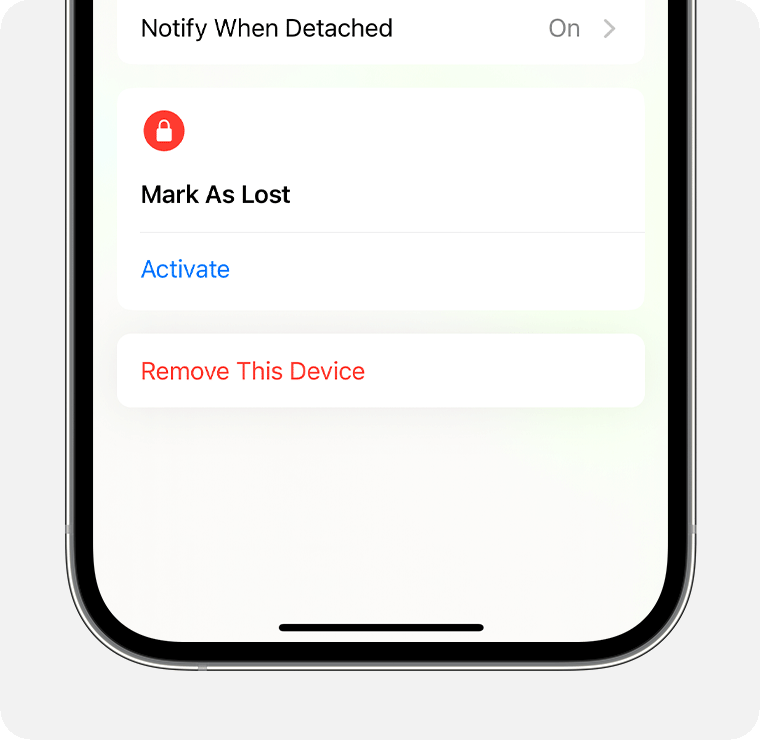
- Click on "Remove".
If you are unable to set up your iPhone wallet with MagSafe
- Make sure your iPhone is updated to the latest version of iOS .
- If the setup animation disappears, press the side button on your iPhone to put it to sleep. Then , wake your iPhone or unlock it . Place your wallet on the back of your iPhone and wait up to 15 seconds; the animation should reappear.
