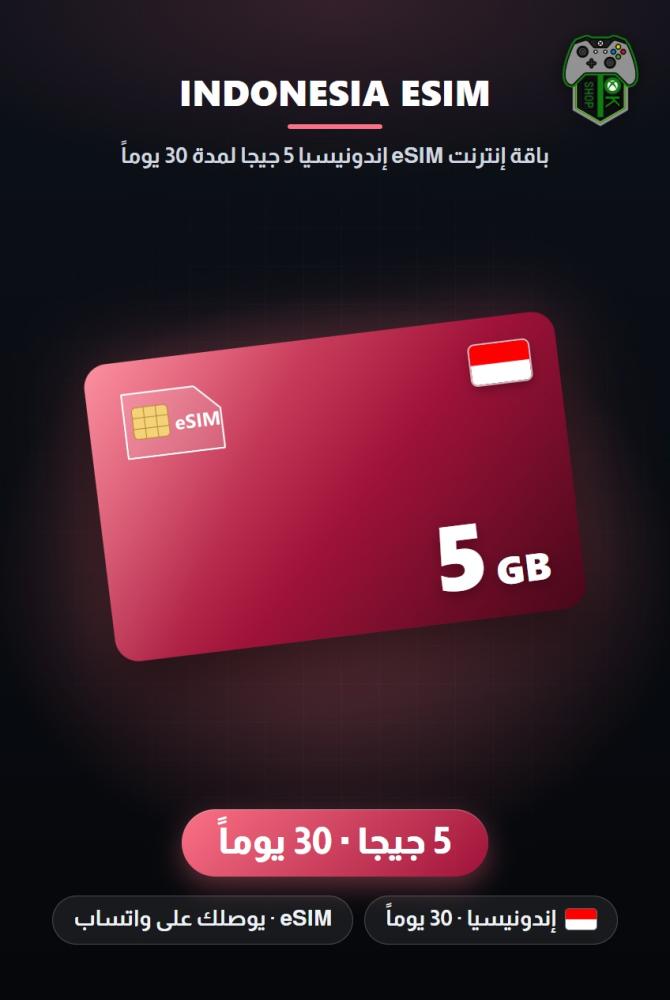
Indonesia eSIM 5GB - 30 Days
71.16ر.س
Product description
OK SHOP · GAMING
🌍 Indonesia eSIM 5GB - 30 Days — Travel eSIM
Data only · Via WhatsApp
📝 About the plan
A travel eSIM internet plan (Indonesia): 5GB · 30 Days, an Airalo plan. An eSIM is a digital SIM built into your phone that is installed without a physical card, and it works only within the plan's coverage area. The plan does not include a phone number or regular calls or text messages, and your current number stays on your primary SIM.
🕹️ Product details
- Type: Digital eSIM: Airalo internet plan
- Plan: 5GB · 30 Days
- Destination: Indonesia
- Networks: 3 (Hutchison), Indosat, Telkomsel
🚀 How to receive and activate
- Before installing: make sure your phone supports eSIM and is not locked to a carrier, connect to a stable internet connection (preferably Wi-Fi), and do not leave the installation steps until they are complete. To scan the QR code, display it on another device's screen or print it, especially if it arrived on the same phone you are installing the eSIM on, or install it manually if you received manual installation details.
- iPhone with a QR code: open Settings > Cellular (or Mobile Data) > Add eSIM (or Set Up Cellular) > Use QR Code (you may need to tap Other Options first). Then scan the code, enter the confirmation code if asked, tap Continue, wait for activation to complete, then tap Done.
- iPhone manually: on the same code-scanning screen, choose Enter Details Manually, enter the SM-DP+ address, the activation code, and the confirmation code if there is one, then tap Next, then Continue, and wait for activation to complete.
- Samsung: open Settings > Connections > SIM manager > Add eSIM > Scan QR code (it may appear as Scan QR code from service provider), then scan the code and tap Add. To install manually, choose Enter activation code on the same scanning screen, enter the code, then tap Done, then Add. On some models the path is SIM card manager > Add mobile plan > Add using QR code (or Add using activation code).
- Pixel: open Settings > Network & internet, tap the + icon next to SIMs, then Download a SIM instead?, then Next; on some versions: SIMs > Add SIM > Set up an eSIM. Then scan the code and tap Download. To install manually, tap Need help?, then Enter it manually, enter the SM-DP+ address, the activation code, and the confirmation code if there is one, then tap Continue.
- After installing: give the eSIM a clear label, such as the destination name, to tell it apart from your primary SIM.
- When you arrive at your destination: turn on the eSIM's line and select it for mobile data (iPhone: Settings > Cellular > select the eSIM > Turn On This Line, then go back to Cellular Data, select the eSIM, and turn off Allow Cellular Data Switching; Samsung: Settings > Connections > SIM manager > Mobile data; Pixel: Settings > Network & internet > SIMs > Mobile data).
- Data roaming: after selecting the eSIM for mobile data at your destination, turn on Data Roaming for it so it can connect to the network (iPhone: Settings > Cellular > select the eSIM > Data Roaming; Samsung: Settings > Connections > Mobile networks > Data roaming; Pixel: Settings > Network & internet > SIMs > select the eSIM > Roaming). The eSIM then usually connects automatically to a supported network.
⏱️ Delivery time
After payment, your eSIM installation details are sent to you on WhatsApp within minutes.
⭐ Why OK SHOP?
- Over 100,000 customers served since 2019.
- Registered with the Saudi Business Center and verified on Trustpilot.
- 100% original products and human support around the clock.
⚠️ Important notes
- The validity period starts when the eSIM connects to a supported network in Indonesia, not when you buy or install it.
- The eSIM works only in Indonesia, on the 3 (Hutchison), Indosat and Telkomsel networks according to Airalo, and its coverage includes, but is not limited to, Bali, Java, Lombok and the Gili Islands. On Android, you may need to set the Access Point Name (APN) manually to "globaldata" according to Airalo; if your delivery details show a different value, use that one.
- Compatibility: your phone must support eSIM. On iPhone, XS, XS Max, XR and later models support it, except models made for mainland China, and models made for Hong Kong and Macao other than iPhone XS, SE (2020), 12 mini and 13 mini (according to Airalo). On Android, an Add eSIM option in the SIM settings, or an EID number shown when you dial *#06#, indicates eSIM support, although some devices may not support it depending on their region of release or carrier, including, according to Airalo, Galaxy devices made for China, Hong Kong and Taiwan.
- Your phone must not be locked to a carrier, because an eSIM cannot be installed on a locked device. To check on iPhone, go to Settings > General > About > Carrier Lock; it must show No SIM restrictions. Only your current carrier can unlock it.
- You can usually call and message through apps such as WhatsApp, Telegram and Signal using the plan's data.
- When to install: if the eSIM's validity starts at its first network connection, as stated above, Airalo recommends installing it before you travel so it connects as soon as you arrive.
- The data is for the whole validity period, not per day; the validity period cannot be extended, and the plan ends when the period ends or when the data runs out before then.
- If the plan covers the country you are in now (such as Saudi Arabia plans for someone in Saudi Arabia, or regional and global plans that include it), do not install it or turn on its line until you need it, because it may connect to the network right away and its validity would start.
- Do not delete the eSIM from your phone after installing it: eSIMs typically cannot be reinstalled after deletion. If you are not using it, turn off its line temporarily instead of deleting it; note that turning it off temporarily does not pause the validity period.
- Your primary number and roaming charges: you can keep your primary SIM on to receive calls and messages on your number, but your carrier may charge roaming fees, so check with them first. According to Airalo, on iPhone you can turn off Data Roaming for the primary SIM alone, while on Android data roaming usually applies to all SIMs, so turn off your primary SIM to avoid roaming charges.
- If the internet does not work: make sure you are within the coverage area, that the eSIM's line is on and selected for mobile data, and that airplane mode is off, and try turning on Data Roaming for it if it is off, since some eSIMs require it. If an APN setting is given in the plan's notes or in your delivery details, enter it exactly as given and leave the other fields blank (iPhone: the eSIM > Cellular Data Network; Android: the eSIM > Access Point Names, then +). If it does not connect automatically, manually select one of the networks listed for the plan (iPhone: the eSIM > Network Selection, and turn off Automatic; Android: turn off Automatically select network). You can also temporarily turn off other SIMs or try 4G/LTE instead of 5G, then restart your phone.
- Some eSIMs must be in use within a set period after purchase (meaning actually connected to a network, not just installed); if that period passes without use, the eSIM can no longer be used, so buy the plan for an upcoming trip.
🔄 Refund and exchange policy
The plan cannot be refunded once its details are delivered, because it is a digital product; you can get a full refund before the order is processed. If the eSIM does not work due to a fault at the source, we verify it and then fix the issue or replace it. Replacement and refunds do not cover: a phone that does not support eSIM or is carrier-locked, deleting the eSIM after installation, the activation window or plan validity running out, validity starting because the eSIM was installed or turned on early, or buying a plan for the wrong destination.
💬 Support
Our team is available on WhatsApp 24/7 for any help or question.
