iPhone to HDMI converter cable
55.64ر.س
Product description
iPhone to HDMI cable/adapter — Easily connect your phone screen to your TV 📺🔌
Do you want to display videos, presentations, games, or your phone screen on a larger screen? An iPhone to HDMI cable or adapter connects you quickly and clearly — a practical solution for home, office, and education.
What is it and why do you need it? 🤔
An iPhone to HDMI cable/adapter is a connector that plugs your iPhone directly into an HDMI port on your TV, projector, or computer monitor. It allows you to mirror your screen or play videos and photos in higher resolution on a larger screen without noticeable lag.
Types of connectors and their compatibility with iPhones 🔄
- Lightning to HDMI adapter : Designed for iPhones with a Lightning port (up to and including the iPhone 14 series). It typically features a Lightning port for charging while displaying content.
- USB-C to HDMI cable/adapter : Designed for newer iPhones with a USB-C port (such as iPhone 15 and later). Some models support higher-resolution video transmission and may not require external charging.
Important specifications and features to look for ✅
- Resolution support: 1080p is common, and some adapters and cables support 4K (check product specifications).
- Refresh rate: Up to 60Hz in the best cases (provides smoothness for video and games).
- Charging support while displaying: Built-in charging port in Lightning adapters.
- Audio support: Supports audio transmission via HDMI for surround sound.
- HDCP compatibility: Supports playback of protected content (but some streaming services may block playback via HDMI — check app restrictions).
- Manufacturing quality: Copper shield, gold-plated connectors and durable sockets reduce signal loss.
How to deliver step by step 🔧
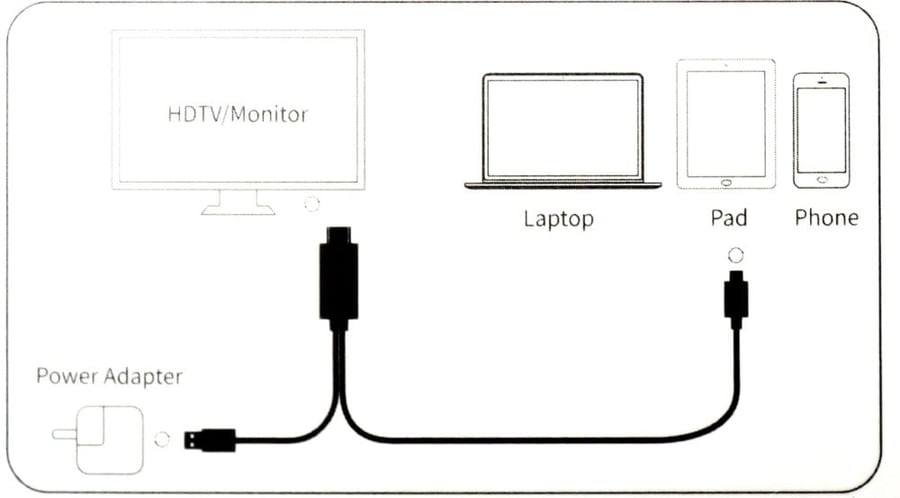
- Connect the HDMI end to the port on the TV or projector.
- If you have an adapter: Connect the HDMI cable to the adapter and then connect the adapter to the phone port (Lightning or USB-C).
- Ensure a power source if necessary (some Lightning adapters require charging via the adapter's charging port).
- Switch the TV input to the appropriate HDMI port.
- Play the video or desired item on your phone — the image will appear on the large screen.
Common problems and quick solutions 🛠️
- No signal? Make sure your TV is turned on to the correct HDMI source and check the cable.
- Black screen when watching streaming services? It could be HDCP restrictions or the app doesn't support output via HDMI—try playing a local video (.mp4) to test the connection.
- Make sure your iOS is updated, close apps, and restart your phone if the problem persists.
- Use a high-quality HDMI (High Speed) cable to reduce signal loss over long distances.
Connect your phone to the big screen now — order the perfect iPhone to HDMI cable for you! 💡
Order it now from Sea Waves for an instant, hassle-free viewing experience. Click Buy Now and enjoy a better viewing experience for movies, games, and presentations on the big screen!
Click here to visit the miscellaneous accessories section
Click here to visit our blog page for top printing tips