
HomeKit Smart PC Start Boot Card - Remotely Turn On Your Computer with Siri
98ر.س
Product description
HomeKit Smart PC Start Boot Card - Remotely Power On Your Computer with Siri
Integrate your computer seamlessly into your Apple HomeKit ecosystem with the HomeKit Smart PC Start Boot Card from Abhir Online. This innovative device empowers you to remotely power on your computer using Siri voice commands or the Apple Home app, eliminating the need for physical access.
Key Features and Benefits:
- Effortless Remote Start: Power on your computer from anywhere using your iPhone, iPad, HomePod, or Apple Watch.
- HomeKit Integration: Control your computer alongside other smart home devices in the Apple Home app.
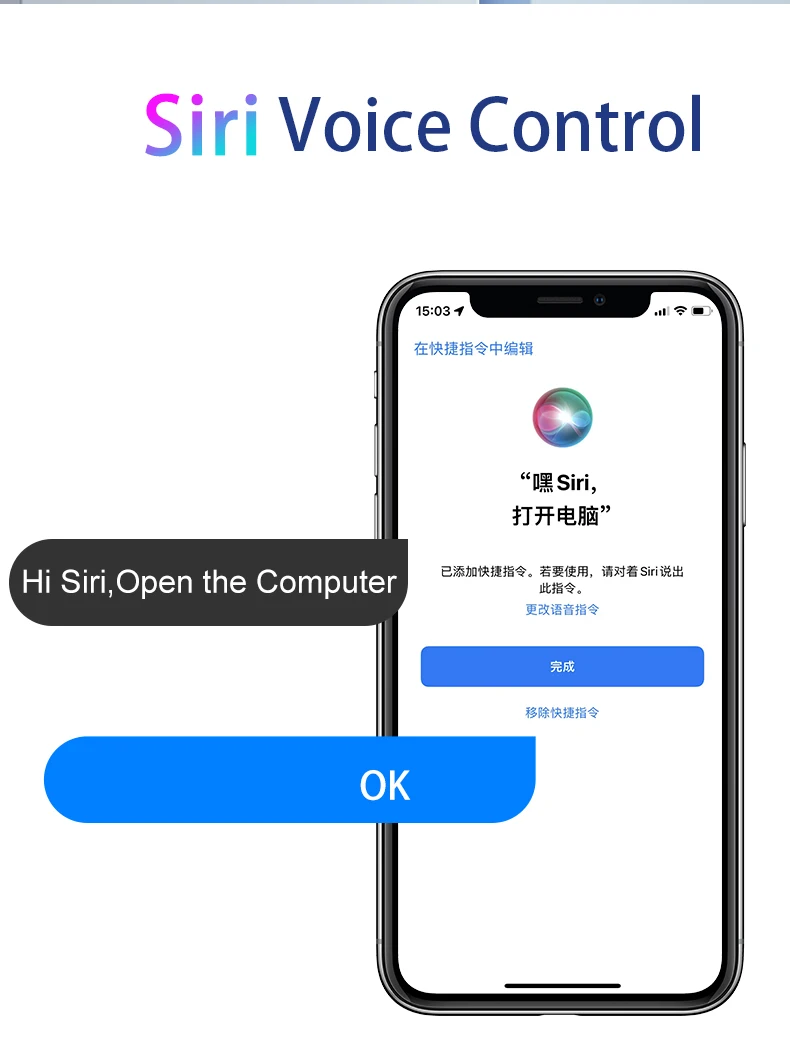
- Voice Control with Siri: Activate your computer with a simple voice command: "Hey Siri, turn on my computer."
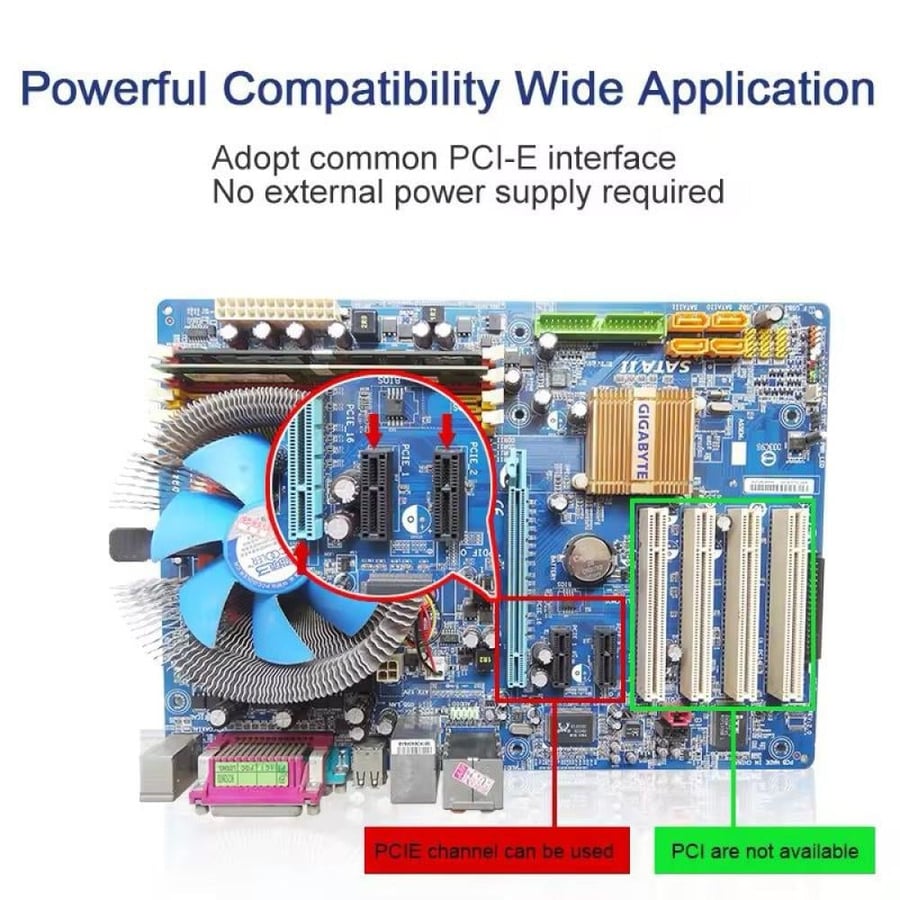
- Simple Installation: Insert the card into an available PCI-E slot on your computer's motherboard; no external power supply is required.
- Broad Compatibility: Compatible with a wide range of computers with available PCI-E slots.
Advantages:
- Seamlessly integrate your computer into your Apple HomeKit ecosystem.
- Power on your computer remotely using your Apple devices or Siri voice commands.
- Simply insert the card into an available PCI-E slot on your computer's motherboard. No external power supply is needed.
- Works with almost any computer that has a free PCI-E x1, x4, x8, or x16 slot.
- "Hey Siri, turn on my computer."
- Connects directly to your WiFi network.
Installation:
- Locate Power SW Cable: Identify and unplug the Power SW cable from your computer's motherboard.
- Install the Boot Card: Insert the HomeKit PC Remote Boot Card into a free PCI-E slot on your motherboard.
- Connect the Cables: Connect the Power SW cable to the corresponding pins on the boot card, then connect the other Power SW cable from the boot card to the motherboard.
Troubleshooting:
Computer turns on automatically after shutdown?
- Power Options: Adjust your computer's Power Options settings. Set "When I press the power button" to "Shut down" and enable "Turn on fast startup."
- BIOS Settings: Modify your computer's BIOS settings. Go to Advanced > APM Configuration, disable "ErP Ready," and enable "Power on by PCI-E."
- Wake on LAN: Disable Wake on LAN if it's enabled on your computer.
- PCI-E Power: If the PCI-E slot lacks power, adjust your BIOS settings to maintain motherboard power even when the computer is off. Consult your motherboard's manual for specific instructions.
Can't connect by scanning the QR code?
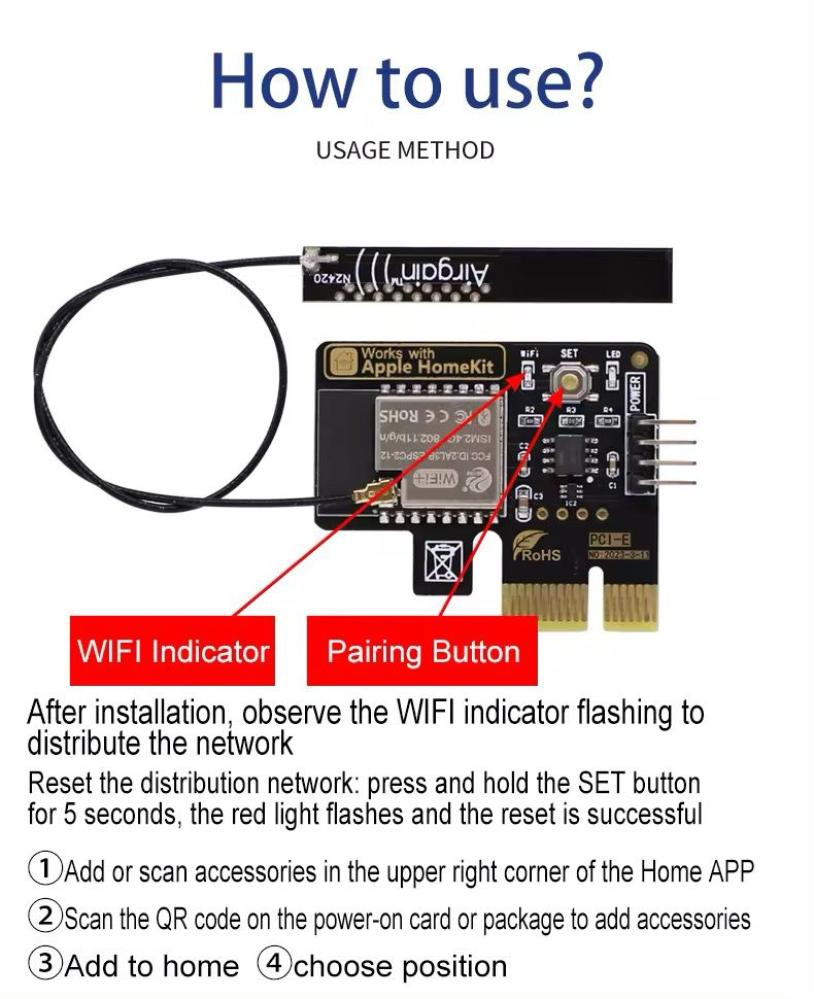
- Manually enter the code number in the Home app.
Remote Access:
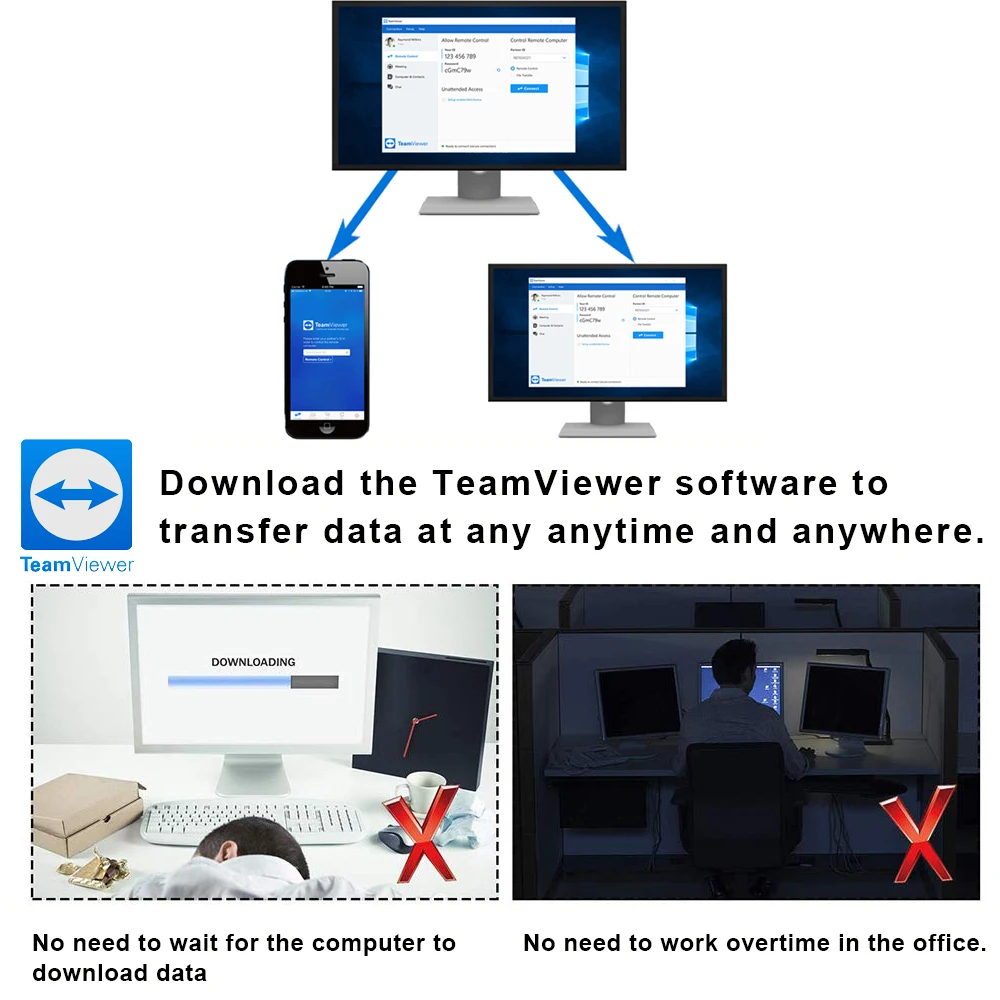
- Utilize TeamViewer software for remote access to your computer.
App Remote Control (Note: Home hub is required)
Technical Specifications:
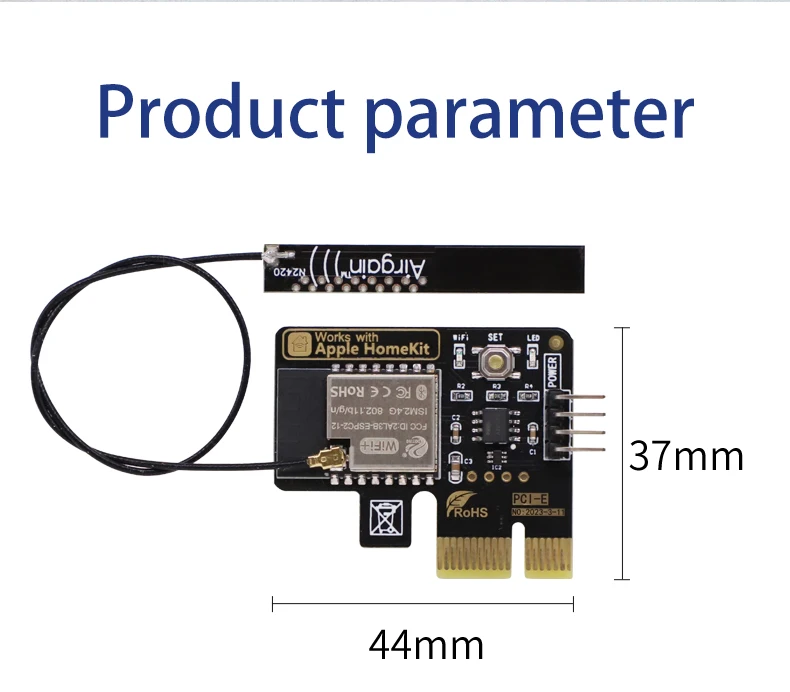
- Interface: PCI-E x1, x4, x8, x16 compatible
- Wireless Standard: WiFi 2.4GHz (5GHz not supported)
- Power Supply: No external power supply required
- Compatibility: Computers with available PCI-E slots
- Voice Control: Siri (via HomeKit)
- App Control: Apple Home app
Upgrade your smart home experience!
Order your HomeKit Smart PC Start Boot Card today and enjoy the convenience of controlling your computer with Siri.
Frequently Asked Questions:
- Q: Can I still use my computer's case button to power it on? A: Yes, the original chassis button will still function normally.
- Q: Can I use a remote control? A: Yes, but you'll need to configure it with a HomePod, HomePod mini, or Apple TV as the central gateway.
App Remote Control (Note: Home hub is required)
Package Contents:
- 1 x HomeKit PC Remote Boot Card
2. App Remote Control (Note:Home hub is required)
Control your computer on Homekit anytime any where. Always know the computer status on App


How to install?
Step 1,find Power SW cable on mainboard,then pull out it.
Step 2,fix APP remote computer module in free PCIE.
Step 3,Insert the previously pulled out Power Sw wires into the corresponding positions of the boot card, and insert the Power Sw wires of the boot card into the corresponding positions of the motherboard.
ATTENTION:
If the computer turn on automatically after it's turned off. Here are the solutions:
1. On computer, go to WINDOWS settings and "Power Options", change the option "When Press on Power button“ to "Shut Down".
2. On computer, go to WINDOWS settings and "Power Options", enable the option "turn on fast startup".
3. On computer, go to BIOS settings / Anvanced / APM Configuration, change the option "ErP Ready" to "Disabled" status and change the option"Power on by PCI-E" enabled.
4. If your computer use "Wake on Lan", please close it.
1.If the computer turn on automatically after it's turned off.
It is because the PCIE card slot has no power and cannot supply power to our equipment. You only need to enter your computer’s “BIOS” setting and set the computer motherboard to remain powered when the computer is shut down to solve the problem.
For example:
(1). On computer, go to BIOS settings/Anvanced/APM Configuration, change the option "ErP Ready" to "Disabled" status and change the option “Power on by PCI-E” to “enabled”.
Note: This is only the setting method for one of the mainboards. Due to too many types of computer mainboards, it is impossible to list them all. Regardless of the type of motherboard, the solution is to keep the motherboard powered after the computer is turned off.
2.What should I do if I can't connect by scanning the QR code?
You can enter code number on home APP directly
You can download the"TeamViewer" software to transfer data at anytime and anywhere.