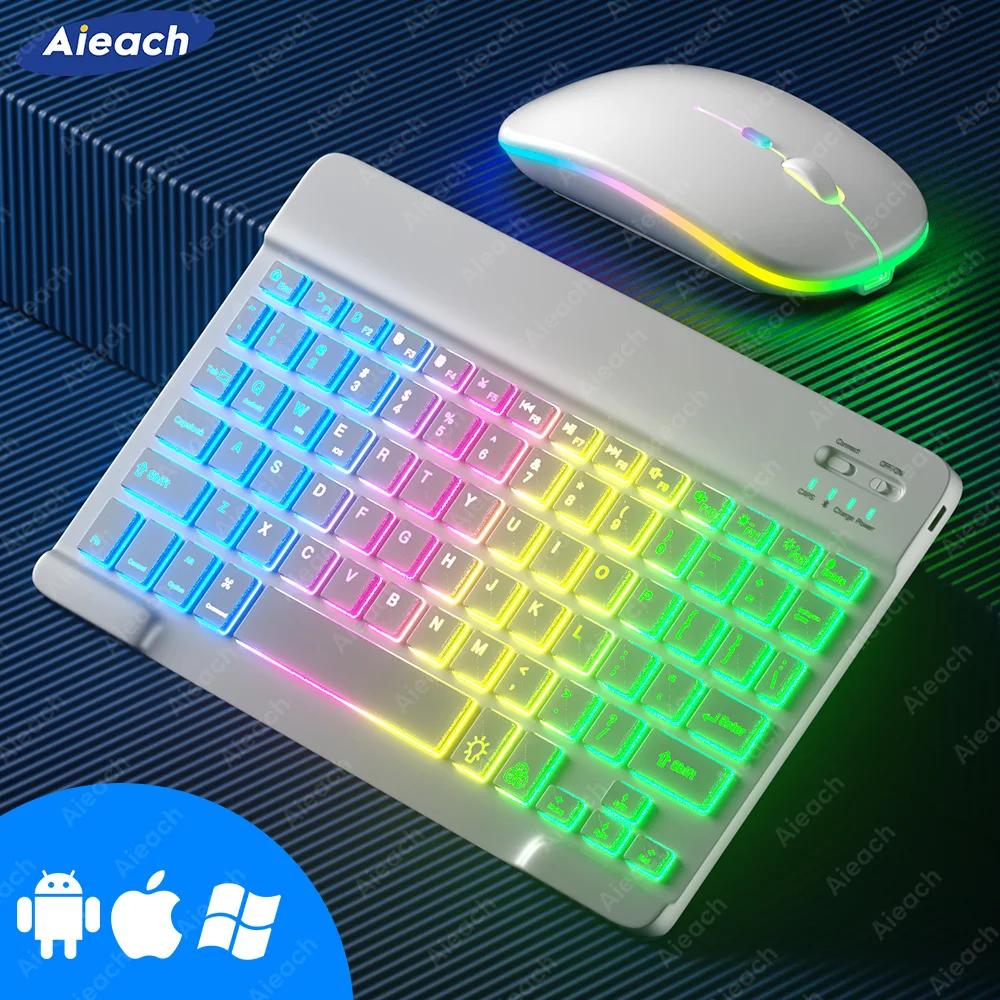


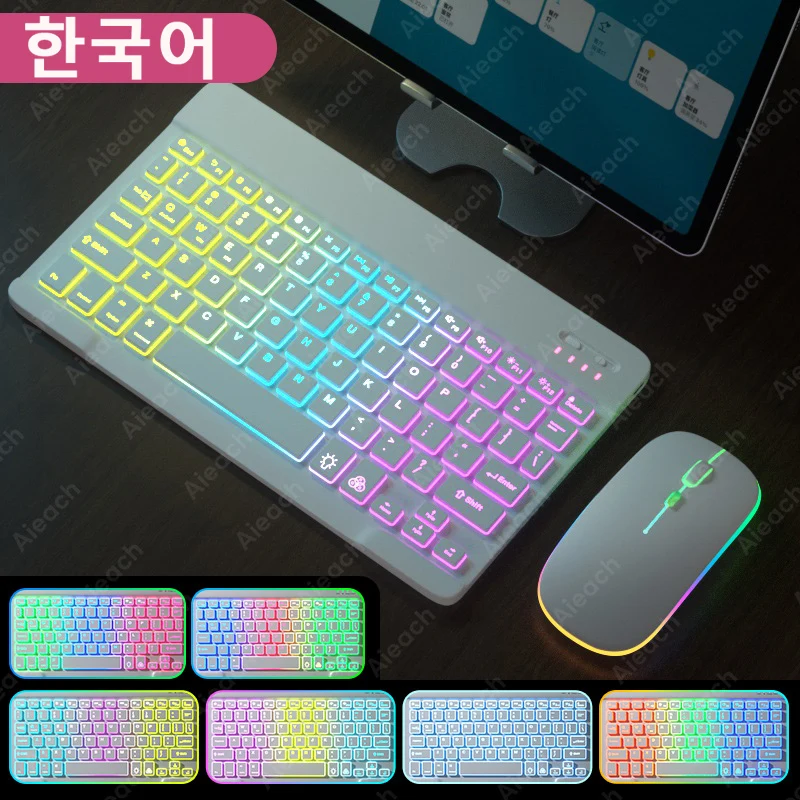


Keyboard for Android iOS Windows tablet Wireless mouse compatible with Bluetooth keyboard with rainbow backlight for iPad phone
83.08ر.س
152.49ر.س-46%Out of Stock
Product description
Please read before purchasing!!! The mouse light is a breathing light and cannot be adjusted independently. The light in the picture is part of the light that was intercepted when the breathing light is turned on. Keyboard and mouse set with RGB backlight colors. New rainbow gradient LED light, comfortable typing, quiet typing. 2 lighting modes, 7 colors of light (💡). Press once: turn on the backlight, press twice: switch to breathing light. Press three times: turn off all lights. (RGB) button. Adjust the light color. (Breathing light mode does not support adjustment.) Ambient lighting design for breathing. The mouse has a colorful breathing light, adding different colors to work. Suitable for multiple operating systems. Supports Android/Windows/iOS/Mac OS... etc. Smartphones, tablets, laptops, and desktops. Very long usage time. Even if you are outdoors or traveling, no need to worry about power issues. Silent listening. Mute, comfortable typing, very suitable for use in a quiet environment. Very thin and easy to carry. Compared to ordinary keyboards and mice, our keyboards and mice are thinner, will not take up space in a backpack/bag, making them easy to carry. 3 system switching (please switch the required system before connecting the keyboard). Mouse: 2.4 GHz USB + Bluetooth connection. 2.4 GHz USB: compatible with laptops and desktops with USB ports. Bluetooth compatible: compatible with all smartphones, tablets, laptops, and all-in-one computers with Bluetooth technology. 3 adjustable DPI levels: 800/1200/1600, three levels of DPI switching, freely adjust the mouse movement speed. Suitable for use in dim environments. When there is no light or in a dark environment, turn on the backlight mode so you are not afraid of the dark environment. Product parameters. Wireless connection with Bluetooth. Please follow prompts to connect. If you have any questions, please contact our customer support for assistance. FAQs. Q: How to connect the keyboard and mouse? A: Connect the mouse first, then connect the keyboard. Mouse: press the key to the Bluetooth icon, find the Bluetooth connection using "Mouse" in the device's Bluetooth list. Keyboard: press the key in the upper right corner to "ON," then press "Connect," find the Bluetooth connection with "Keyboard" in the device's Bluetooth list. Q: How to switch between Android/Windows/iOS systems? A: Press Fn+Q (Android)/Fn+W (Windows)/Fn+E (iOS) to switch systems. Different system shortcuts vary. (Switching to the wrong system will affect keyboard input.) Q: How to configure input methods for different language keyboards? A: Press Fn+Q (Android)/Fn+W (Windows)/Fn+E (iOS) to switch systems. Different system shortcuts vary. (Switching to the wrong system will affect keyboard input.) For example, on an iPad, go to "Settings" — "General" — "Keyboard" — "Keyboards" — "Add New Keyboard." (For other systems, please set according to system settings following the example of iPad.) Korean + English keyboard: select the Korean input method. French + English keyboard: select French (France) — AZERTY input method. Spanish + English keyboard: select Spanish (Spain) input method. Portuguese + English keyboard: select Portuguese (Portugal) input method. Q: What symbols and characters does the keyboard support? A: Please check the picture below to find the corresponding language keyboard. Q: What should I pay attention to when using the mouse in iOS system? A: Upgrade iOS system above 13.0. Q: Why does the Bluetooth mouse show "connected" but no pointer appears? A: Open Settings, find Accessibility, turn on Assistive Touch. Q: How does the mouse change the scroll wheel direction on an iPad? A: The mouse is connected, open "Settings" - "General" - "Trackpad & Mouse" - turn off "Natural Scrolling." Q: What device models are compatible with the keyboard and mouse? A: Suitable for smartphones, tablets, laptops, and desktops. (Because the keyboard button design differs from traditional keyboards, button shortcuts differ when used on PCs and laptops, please try for yourself.) Q: How to switch keyboard input language? A: Android: press Shift + Spacebar or Shift to switch between different languages. iOS: press Control + Spacebar to switch between languages.

From Riyadh