
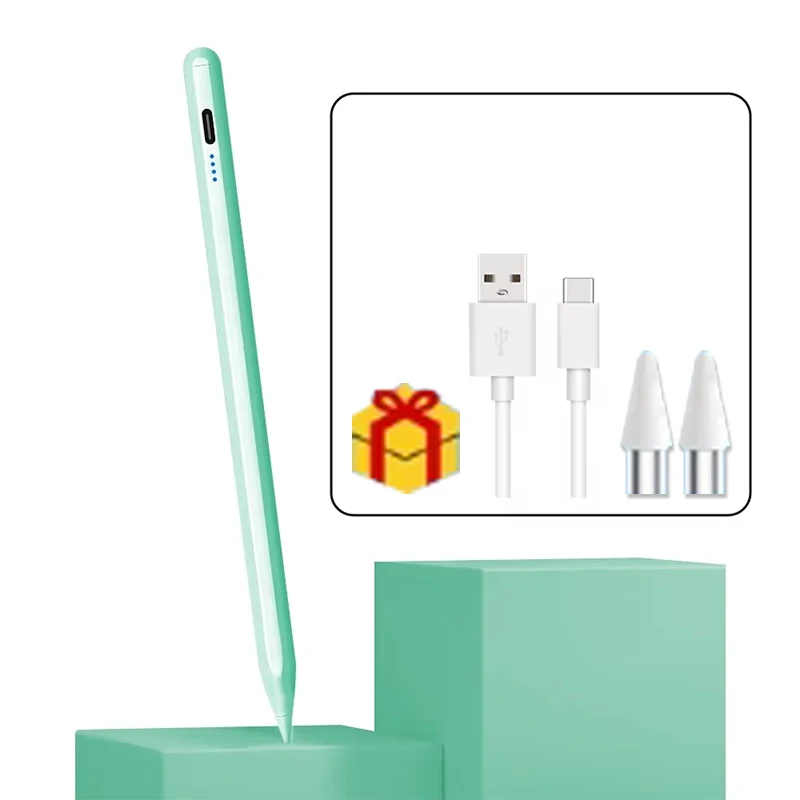
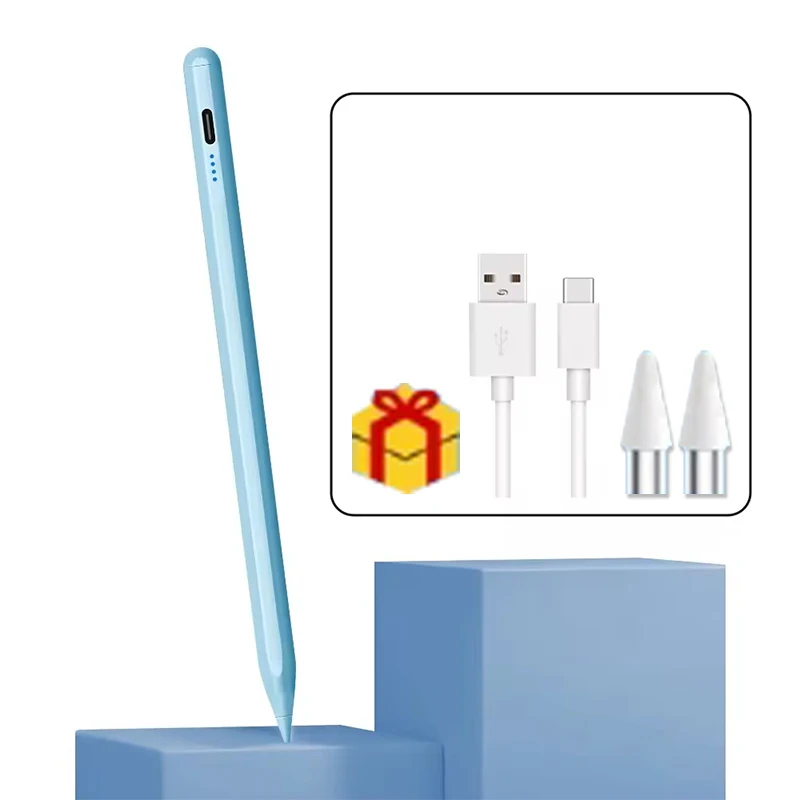
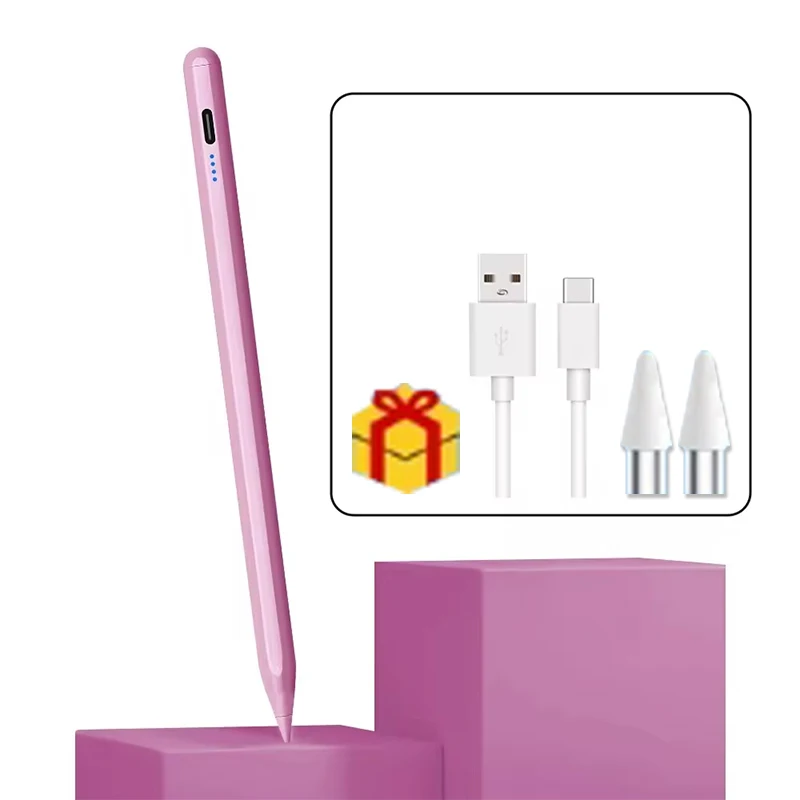
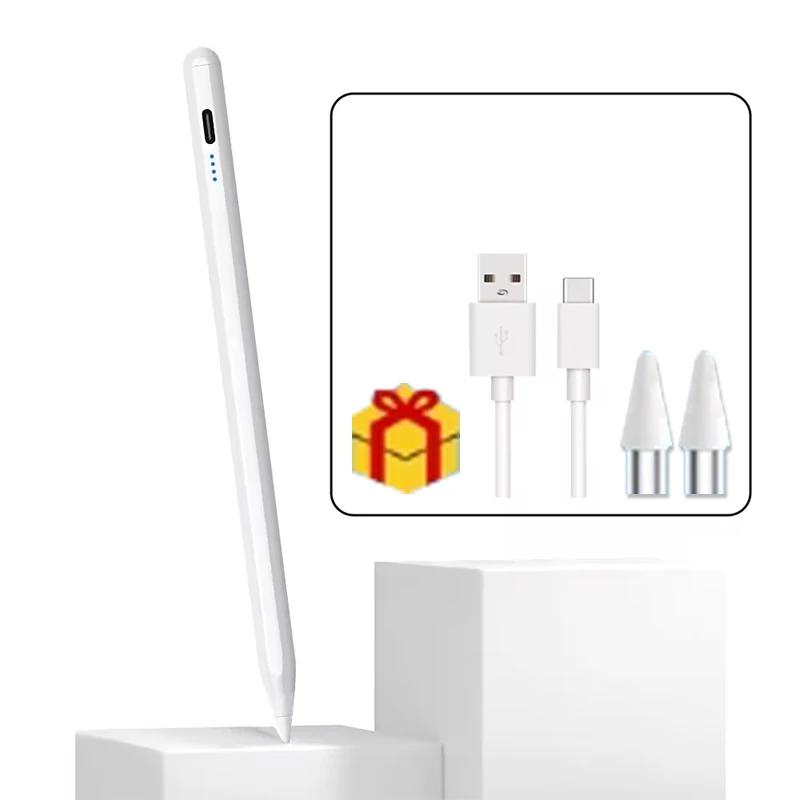
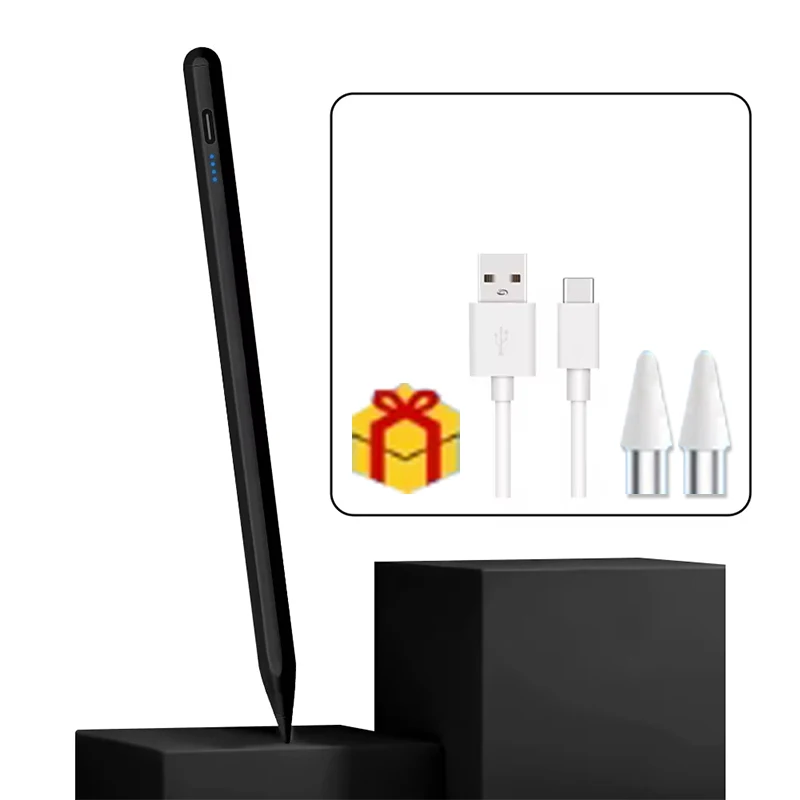
Multicolor touch pen for iOS/Android
37ر.س
42ر.س-12%Product description
Please use the available anti-contact gloves when using the universal pen. 2. The universal pen should be tilted at a 15-degree angle when used and cannot be used vertically. 3. The pen cannot be used while charging the tablet, and cannot be used during its use. 4. In case of touch interruption, it may be due to using a thicker protective layer. It is recommended to use a thin protective layer. General pens cannot use paper-like films as this will cause disconnection of the touch. 5. If the pen tip cannot be used, please try replacing it with a spare pen tip. 6. If your tablet or phone screen has been replaced, it may become unusable due to touch failure. 7. If you are not wearing anti-contact gloves, please do not touch the tablet or mobile screen to avoid inability to use it. Note: It is not recommended to use a universal capacitive pen with Lenovo Xiaoxin or Teclast Realme or Readboy tabletOnePlus BBK or learning machine, because this will cause a high possibility of touch disconnection. 8. If you connect your original pen, when using the universal pen, you need to disconnect the original pen so that the universal pen can write normally. How to set up some programs: 1. Sketch Book 1. Open the "SketchBook" program. 2. Click on "Main Menu". 3. Click on "Preferences". 4. Click on "General". 5. Turn on/off "Pen Mode". 2. Create 1. Open the "Create" program. 2. Click on the top left corner of the panel interface, and click on the toggle key. 3. Click on "Gesture Control". 4. Select "Enable Finger Painting". 3. GoodNote note 1. Open the "GoodNote" program. 2. Click in the upper right corner of the panel page, and click on the three options. 3. Scroll down to select the pen and prevent accidental touches. 4. Click on the smart pen, and select any of them. 4. Note 1. Open the "Note" application. 2. Open the drawing page, and click on the three dots in the upper right corner. 3. Click on "Information", and disconnect the Apple Pen. 5. Notes 1. Update to the latest version. 2. Open the "Notes" application. 3. Click on the panel page and select the three dots in the lower right corner. 4. Click on "Pen Settings" and scroll down. 5. Turn on "Finger Painting". 6. Apple iPad Notes 1. Open the tablet settings and find Apple Pencil. 2. Turn off Scribble and Doodle. 3. Open the page and select the stroke. 7. World Drawing 1. Open the "World Painting" program. 2. Open the panel page, and click on the gear in the upper corner. 4. Turn off "Pen Mode". 8. Noteshelf 1. Open the "Noteshelf" program. 2. Open the drawing page, and click on the three dots in the upper right. 3. Select the pen. 4. Turn off "Apple Pen" mode. Features: Active universal capacitive pen with POM wear-resistant tip, material to display battery level, replaceable aluminum shell, matte spray technology for better hand feel. Charging port: Type C charging port with added dust cover. Latency: 6 milliseconds. Pen tip: Special connector pen tip, pre-installed, with two spare tips. Materials: Processed spray coating, metallic shell, very smooth feel. Connection: Direct use of the pen tip when operating. 1.6 mm PIXELPOINT. Size: Length 163 mm, diameter 9.1 mm. D-shaped pen tube, with only the thinnest part 8.3 mm. Weight: 70 grams. Box size: 45*36*32.5 cm. Total weight: 7.1 kg/100 pieces. Charging time: about 1.5 hours. Working time: can work for 18 hours after full charge. Standby time: when the battery is fully charged, it can stand for up to 2 years. Compatibility: suitable for most capacitive screen devices. System: suitable for most capacitive screen devices. Accessories: 2 pen tips, 1 data cable, 1 user manual. Point of sale: Special connector pen tip, pre-installed, replaceable tip, suitable for most capacitive screen devices.

From Riyadh