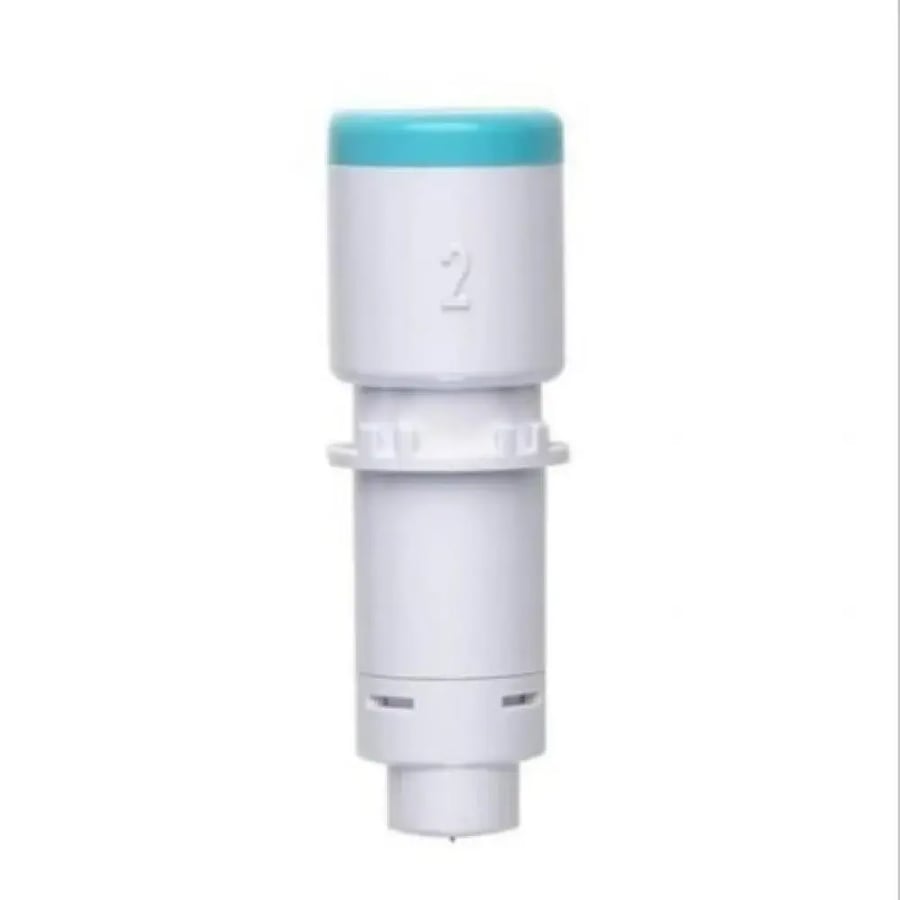
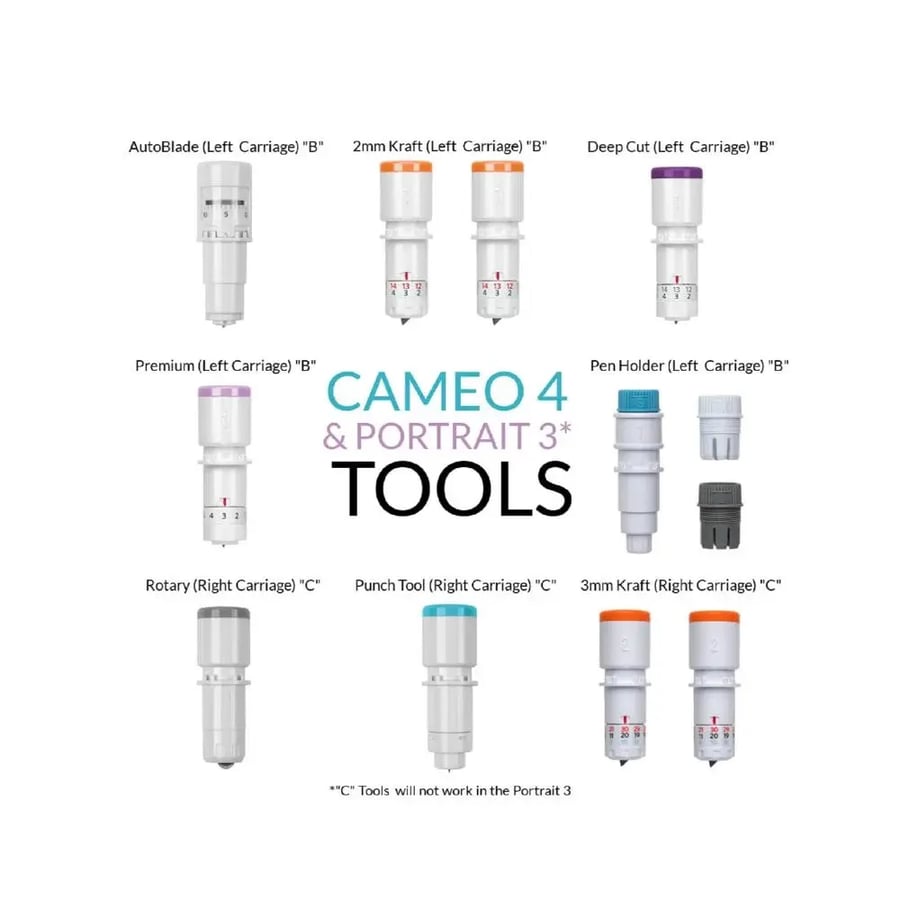

Camio4 perforation and excess removal tool
74.75ر.س
Out of Stock
Product description
Technical Specifications
Type of tool: Punch tool.
Exclusive compatibility: Silhouette Cameo 4 (Plus/Pro) exclusively.
Installation location: Carriage number 2.
Main function: Create starting points for "weed" process.
Supported materials: Heat transfer vinyl, surface vinyl, sticker paper.
Origin: Silhouette America original company.
Section: Cutting tools and supplies.
Superior quality standards
What distinguishes the punch tool from others is the embedded software intelligence; when placed in the vinyl cutting machine, the "Silhouette Studio" program opens the "zero results" options for punching. You can choose "negative space" to remove the surrounding vinyl of the design, or "positive space" when making stencils. The tool literally "plants" small dots in dead corners, giving you a thread end to lift with a hook without searching for a starting point, which protects the sensitive heat transfer vinyl layer from scratches caused by repeated manual attempts.
Why is it the first choice?
Why waste your time searching for design edges when Cameo 4 can do that for you? The punch tool is the smartest investment to increase your home store productivity by 50%. Thanks to this tool, you will be able to "weed" hundreds of logos with utmost precision and without waste of materials. At Al Sharq Al Nader store, we provide you with technologies that make heat transfer printing fun and fast, allowing you to focus on creativity and increase your sales volume instead of wasting time on tedious manual details.
Creative ideas
Complex Thuluth fonts: Use the tool to make weed points in sharp corners of Arabic fonts to facilitate lifting.
Professional stencil: Set "positive space" to create very precise stencil templates for drawing on furniture or walls.
Birth distributions: Automate the process of weeding names written in gold heat transfer vinyl on T-shirts to ensure quality for large factories.
Precise logos: Ideal for logos with small internal details (such as circles inside letters).
Usage instructions
For optimal technical performance and full automation, follow these steps:
1. Install the punch tool in carriage number 2 (right) of the Silhouette Cameo 4 vinyl cutter.
2. In Silhouette Studio, go to the "Send" tab and activate the "Punch Tool" option.
3. Choose task type: remove negative space (for vinyl) or positive space (for stencils).
4. The machine will first make the punching points, then cut using the blade in carriage number 1.
5. Use the professional vinyl picker to easily peel the vinyl from the points made by the tool.
6. Transfer your design and use a heat press to ensure the final work's stability.
Frequently Asked Questions
Does the punch tool work with Cameo 3?
No, this tool is exclusively designed to work with the pressure and sensors in Cameo 4 and newer models.
Does this tool cut vinyl?
The tool's function is "puncture" to create helper points, and it is always used alongside the main cutting blade in carriage number 1.
Does the tool leave holes in the final design?
No, the tool is designed to make holes only in "weeding areas," leaving your main heat transfer vinyl design intact and clean.
Leave manual weed removal behind and let your device work intelligently!
Order the original punch tool for the Cameo 4 now from Al Sharq Al Nader store and elevate your production speed to professional levels.